Wallet Creation Guide
Create a Onepick Wallet
Quickly and Easily in Just 1 Minute!
Just a moment! You can create a wallet on the Chrome browser.
Please check if you are using the Chrome browser.
Please proceed with whichever of
the following 2 methods is more convenient for you!
Method 1
Getting Started with Chatbot
Click the chatbot button below and click the "Create a Wallet" button.
Then, follow the chatbot's prompts and submit
the required information to complete the registration process easily.
Click the chatbot button below and click the "Create a Wallet" button.
Then, follow the chatbot's prompts and submit the required information to complete the registration process easily.
Method 2
Please Follow the Guide below
Step by Step
STEP 1
Access the Dedicated Website
For Creating OnePick Wallet
Access the dedicated Onepick Wallet creation site by clicking the button below.
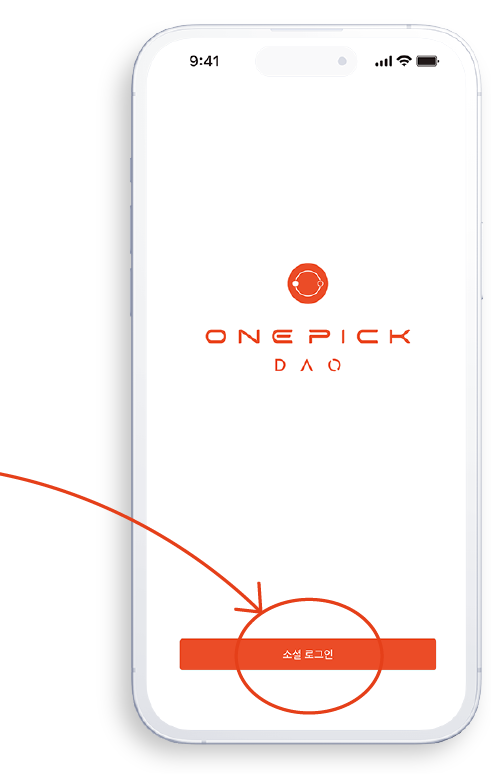
Once you've accessed the site, click the social login button.
STEP 2
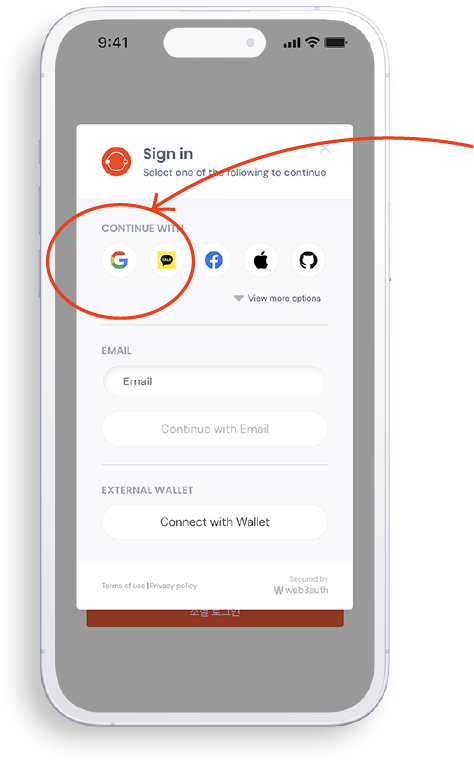
Join with Gmail
For enhanced security, we recommend using your Gmail account for signing up.
If you don't have a Gmail account, click the button below to create one.
STEP 3
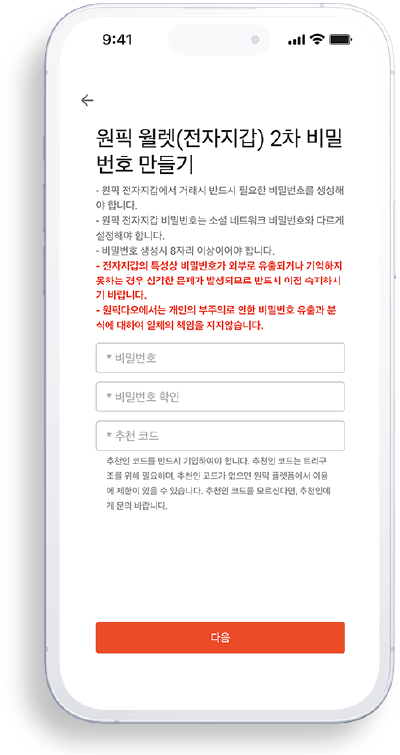
Enter Password and Referral Code
Enter your Gmail address, password, and create an Onepick Wallet password (8 or more characters with a combination of letters, numbers, and symbols).
Please keep your password secure!
Make sure to enter the referral code when creating your wallet. If you don't have a referral, you can use the default code provided.
Please double-check the referral code to ensure you receive the prepared benefits.
STEP 4
Congratulations!
You Have Successfully Created a Onepick Wallet.
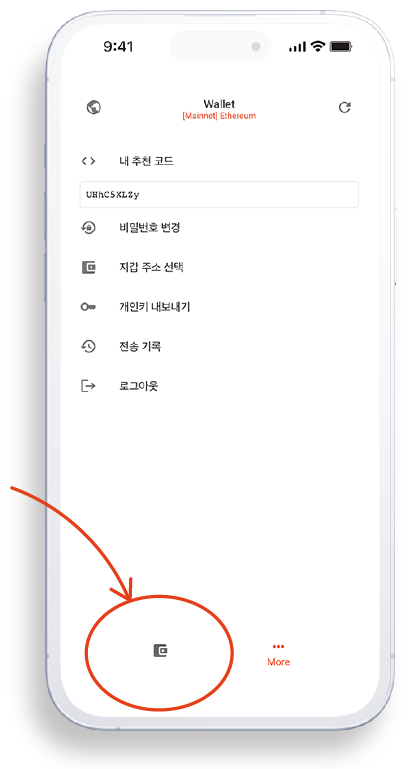
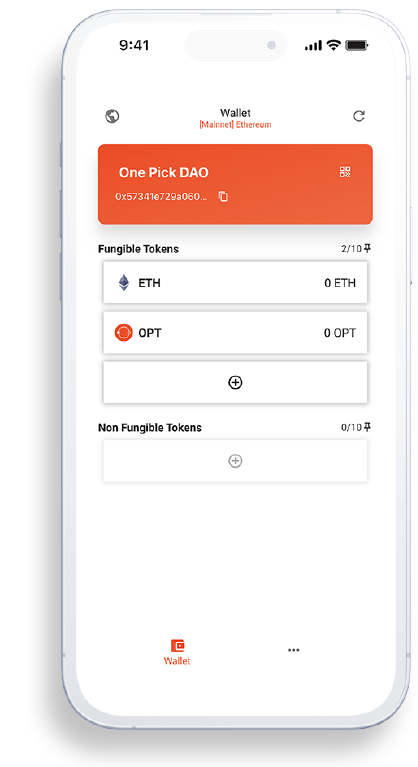
Click the wallet icon button at the bottom left to view your wallet address and token balance.
Start using your Onepick Wallet for safe and convenient access to Onepick services.